

Is Your Gmail Account Secure? 5 Simple Steps to Protect Your Business Email

Your Gmail account is probably doing a lot of heavy lifting.
It may be connected to your website, email marketing platform, Google Drive, calendar, payment tools, social accounts, analytics, and a rather alarming number of “Sign in with Google” buttons.
So if someone gets into your business email, they may not just be reading messages. They could potentially access other tools, reset passwords, impersonate you, or send convincing emails to your clients. And the bad news is that I've seen a lot of this type of activity happening lately.
The good news? You don’t need to be a cybersecurity expert to make your Gmail or Google Workspace account safer. Not even close - they make it easy.
Just make sure you set up the basics before there’s an emergency.
Here’s your friendly, no-jargon Gmail security checklist.
First: Hacking Isn’t the Same as Spoofing
Before we get into the practical steps, let’s clear up two terms that are often mixed together.
Account hacking
Account hacking means someone has gained access to your actual Gmail or Google Workspace account.
They may be able to:
Read your emails
Send messages from your account
Search through old conversations for sensitive information
Access connected Google services
Change your password or recovery details
Add their own sign-in method
Use your account to target your clients or contacts
This is an account security problem.
Email spoofing
Email spoofing is when someone makes an email look like it came from your address, even though they may not have access to your account at all.
For example, a scammer might send your client an email that appears to be from you@yourbusiness.com, asking for payment or confidential information. Your account may be completely secure, the sender is simply disguising their address.
Spoofing is a separate topic involving email authentication settings such as SPF, DKIM, and DMARC. We’ll save that particular tech soup for another post.
For now, we’re focusing on preventing someone from getting into your Gmail or Google Workspace account in the first place.
Step 1: Turn On Two-Step Verification
Two-step verification is your first line of defence.
Your password is one layer of protection. Two-step verification adds another layer by asking you to confirm that it’s really you when you sign in.
That second step might be an authenticator code, a Google prompt, a passkey, or a security key.
If someone steals or guesses your password, they still shouldn’t be able to get into your account without that second step.
How to turn it on
Open your Google Account.
Select Security & sign-in.
Under How you sign in to Google, choose Turn on 2-Step Verification.
Follow the instructions on screen.
For a small business owner, setting up an authenticator app is a practical place to start. Google Authenticator can generate one-time codes even when you don’t have mobile service or an internet connection.
That’s generally a safer choice than relying only on text message codes, which can be vulnerable to phone-number-based attacks such as SIM swapping.
Google prompts are another convenient option, especially if you prefer tapping Yes or No instead of typing a code. You can use more than one verification method, which is helpful if you lose access to your phone.
Quick security rule: Never share a verification code with anyone. Google will not call you and ask for one.
> Checklist
>
> - [ ] 2-Step Verification is turned on
> - [ ] An authenticator app is set up
> - [ ] You have a backup sign-in method
> - [ ] You know where your backup codes are stored, if you use them

Step 2: Set Up a Passkey
A passkey lets you sign in using your fingerprint, face scan, or device screen lock, such as a PIN.
Every time I use one, it's the thing that makes me thing, "Damn, we're really living in the future".
Passkeys are designed to be much harder to use in a phishing attack because there isn’t a password or code for you to accidentally hand over. The passkey stays on your device and helps prove that you have access to it.
Google explains that passkeys cannot be shared, copied, written down, or accidentally given to someone else. They can also work alongside 2-Step Verification. In many cases, using a passkey verifies that you have possession of your device, so it can bypass the usual second step.
How to set up a passkey
Go to Google’s passkey settings.
Select Create a passkey.
Unlock your device when prompted.
Follow the instructions to finish setup.
There’s one important catch: only create a passkey on a trusted device that you personally own and use.
Do not set one up on:
A shared office computer
A borrowed laptop
A public computer
A device belonging to a contractor or former employee
Anyone who can unlock a device with your passkey may be able to access your Google Account. If you lose a device, remove its passkey from your account as soon as possible.
If you use Google Workspace through an employer or organization, your administrator may control whether passkeys can be used for passwordless sign-in. You may still be able to use one as a second factor or account recovery option.
> Checklist
>
> - [ ] A passkey is set up on your trusted phone or computer
> - [ ] Your device has a screen lock enabled
> - [ ] You have removed passkeys from lost, shared, or old devices
> - [ ] You know whether your Workspace administrator allows passwordless sign-in
Step 3: Review Devices, Activity, and Recovery Settings
Security settings are not a “set it once and forget it” situation. People replace phones, sign into new laptops, hire contractors, and connect new apps all the time.
Once a month, take a quick look at what is connected to your account.
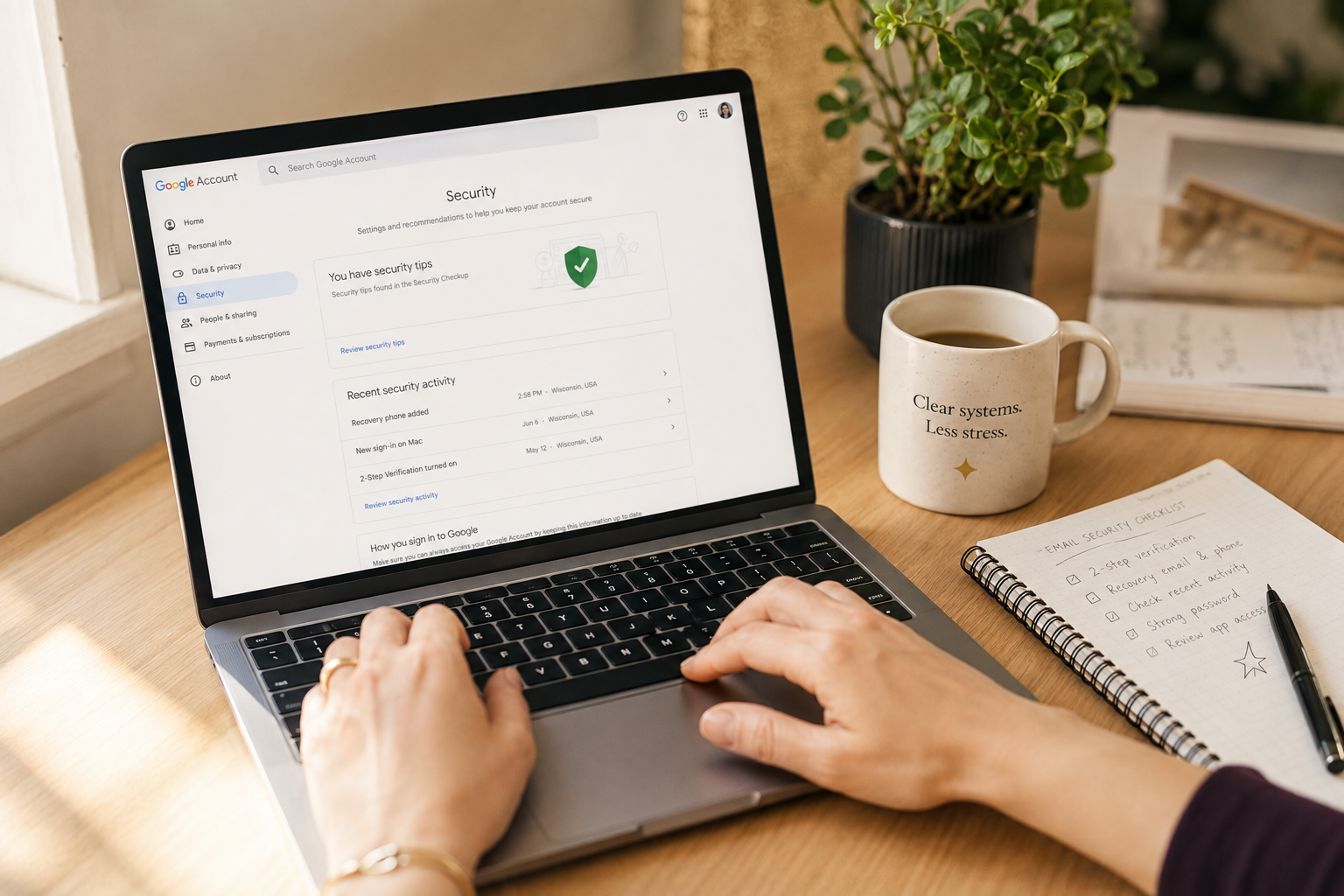
Start with your Google Account Security page and review:
Your devices
Look for phones, tablets, and computers that have access to your account.
Recognize everything?
If you see an old laptop, a lost phone, or a device you don’t recognize, sign it out. Google also provides a device access review to help you check where your account is signed in.
Recent security activity
Check for:
New sign-ins
Password changes
New passkeys
New authenticator apps
Recovery phone or email changes
Unfamiliar security alerts
If Google marks a sign-in method as “at risk” and you don’t recognize it, remove it immediately. Google recommends changing your password and reviewing your account settings for suspicious activity.
Recovery email and phone number
Make sure your recovery details are current and belong to you.
An old phone number or inactive email address won’t be much help when you’re locked out. If you have a separate, secure email address for account recovery, check that you can still access it.
Your recovery information is the spare key to your digital front door. Please don’t leave it taped under the virtual doormat.
> Checklist
>
> - [ ] Every signed-in device is familiar
> - [ ] Recent security activity looks normal
> - [ ] Your recovery email is current
> - [ ] Your recovery phone number is current
> - [ ] Unrecognized sign-in methods and devices have been removed
Step 4: Give Marketers Safe Access Without Sharing Your Password
If a trusted marketer, assistant, or web professional needs to work with your Gmail-connected tools, do not give them your main Google password.
Password sharing creates a few problems:
You lose control over who can access the account
You may need to change the password every time someone leaves
You can’t easily see what each person has permission to do
Shared passwords may be stored in unsafe places
One compromised person’s device could put your account at risk
Instead, use the access options built into each platform.
Gmail delegation
For Gmail specifically, Gmail delegation can allow another person to read, send, and delete messages on your behalf without giving them your password.
This can be useful if you have an assistant managing your inbox or a trusted team member helping with customer enquiries.
Delegation is not the same as giving someone access to your entire Google Account. It applies to Gmail, not automatically to your Drive, Calendar, or other services.
Google Workspace access
If you use Google Workspace, your administrator can manage users, roles, and access through the Admin console. Each person should have their own account with their own 2-Step Verification and passkey settings.
Avoid using one shared “business owner” login for everyone. Individual accounts make it easier to remove access when someone changes roles or leaves the business.
Connected marketing tools
For tools such as Google Analytics, Search Console, advertising platforms, email marketing services, and social scheduling tools, invite people as users or collaborators whenever the platform allows it.
Give the lowest level of access needed for the job.
Someone helping with a monthly report may not need permission to change billing, delete data, or manage every account setting. Keep the access tidy and specific: like a well-organized junk drawer, but with fewer mystery charging cables.
When a contract ends, remove access promptly. A quick access review should be part of your offboarding process.
> Checklist
>
> - [ ] You have never shared your main Google password
> - [ ] Gmail delegation is used where appropriate
> - [ ] Marketers have their own user accounts
> - [ ] Connected tools use role-based access
> - [ ] Former contractors and team members have been removed
> - [ ] Third-party apps are reviewed regularly
Step 5: Make This a Monthly Habit
You don’t need to spend your entire afternoon thinking about cybersecurity. A five-minute monthly check can catch problems early.
Add a recurring reminder to your calendar and review:
2-Step Verification is still active
Your authenticator app works
Your passkey is on a trusted device
Signed-in devices are familiar
Recent security activity looks normal
Recovery email and phone number are current
Gmail delegates are still trusted
Connected apps still need access
Former marketers, contractors, and employees are removed
Your password is unique and not reused elsewhere
If anything looks unfamiliar, don’t click around randomly or wait to see what happens. Change your password, remove unknown access, and follow Google’s guidance for securing a compromised account.
You Don’t Have to Figure It Out Alone
Business email security can sound intimidating, especially when every platform uses slightly different language for the same basic idea.
But the first steps are simple:
Add a second layer.
Set up a passkey.
Review who and what has access.
Remove anything you don’t recognize.
That’s a strong start.
At Resolve Creative Solutions, we help small business owners cut through the tech overwhelm and create digital systems that work smoothly. If you need a patient second set of eyes for Google Workspace, connected marketing tools, or account access, our “I Need a Techie Bestie” support is designed for exactly that kind of thing.
And if your wider online presence needs a review, a Resolve Report website audit can help you see what’s working, what needs attention, and what to tackle next.
You don’t need to know everything before you ask for help.
You just need to start with one small security step today.